

- For all native targets, write-ahead logging (WAL) is enabled to support concurrent reads and writes. PowerSync also dispatches queries to multiple threads for parallelism. With the JavaScript web SDK, a WAL-like option is available on Chromium browsers.
- SDKs also configure connections for performance by enabling a large page cache of around 50MB and setting
pragma synchronous = normalto avoid frequent fsync operations.
Debugging Query Performance
Slow queries can have two causes:- The query itself is slow, e.g. because it reads a lot of rows or uses unoptimized joins not backed by an index. The Fixing Slow Queries section describes how these queries can be optimized.
- The database is blocked. There can only be a single writer at a time, and the number of concurrent readers is bound by an option set when opening the database. So a query that appears slow might actually be fast, having run at an unfortunate time when the database was busy.
debugMode flag in the Web SDK logs all SQL queries on the Performance timeline in Chrome’s Developer Tools (after recording). This can help identify slow-running queries. With the Dart SDK, queries are logged to the Performance View in DevTools by default outside of release builds.
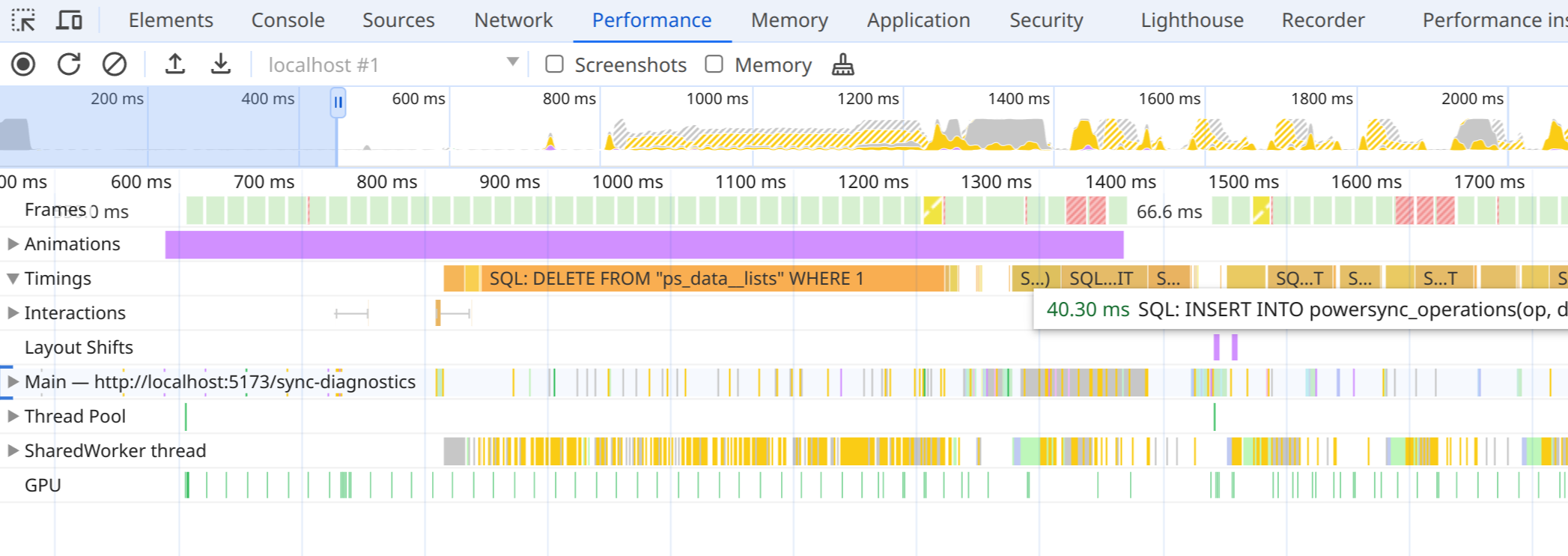
Performance timeline in Chrome DevTools showing PowerSync query durations
- PowerSync queries from client code.
- Internal statements from PowerSync, including queries saving sync data, and begin/commit statements.
- The time spent waiting for the global transaction lock. It still includes all overhead in worker communication, so you generally won’t see concurrent queries reflected in the trace.
- Internal statements from
powersync-sqlite-core, used by the Sync client for Sync Stream bookkeeping.
PowerSyncDatabase:
WASQLiteVFS.OPFSWriteAheadVFS). The Swift and Kotlin SDKs always use four read connections; React Native uses five.
For contention on the write connection, note that the PowerSync client processes changes from the PowerSync Service in a single write transaction after they’ve been downloaded. Due to consistency requirements, this transaction cannot be split into multiple steps, and especially for a large initial sync it can hold a write lock for several seconds.
Fixing Slow Queries
If a query itself is expensive and takes a long time to run, several options can improve performance. Some of these require a restructuring of your app’s schema.- Where possible, filter on the
idcolumn of tables to reduce the number of rows read, which makes queries more efficient. When filtering on other columns of large tables, make sure these columns are covered by indexes declared in your app’s schema. - For auto-updating watched queries on frequently-changed tables, queries might run very often. Watched queries should typically be cheap to run, as they otherwise risk blocking SQLite connections for too long. For more expensive queries that still need to be watched, consider increasing their throttle to run them less often.
- By default, PowerSync tables are views over JSON data that extract columns by parsing from JSON each time a row is accessed. While SQLite has a cache for parsed JSON, this is still slow for queries that read many rows, for example to filter, sort or aggregate. Managed tables store data in SQLite columns instead, at the cost of slower schema changes.
- If your app runs the same quick queries many times, SQLite spends part of each run reading the SQL and planning the query again. In the JavaScript Web and Dart SDKs, a prepared statement cache keeps recently planned queries so that SQLite can reuse them.
- In the JavaScript SDKs, you can replace regular watched queries with High Performance Diffs. These use triggers internally to report only changed rows back to your app.
Prepared Statement Cache
For cheap statements that run frequently, the cost of preparing a statement (making SQLite parse the SQL text and come up with a query plan based on available indexes) can make up a substantial chunk of the total query runtime. In the JavaScript Web and Dart SDKs, enable a cache of prepared statements when opening the database:preparedStatementsCache option for JavaScript or for Dart.
Managed Views vs. Managed Tables
By default, each table in your client-side schema is a managed view. PowerSync stores synced rows as JSON in an internal table and creates a SQLite view that extracts your columns from the JSON. Queries on the view decode the JSON of every row they read. A managed table stores rows in a SQLite table, with a column for each column in your schema. You query and write to it with the same SQL statements as a managed view. PowerSync still creates and migrates the table and adds local writes to the upload queue. The difference is that queries read values directly instead of decoding JSON, so they run faster. How much faster depends on how many rows a query reads:- Most gain: Queries that filter, sort or aggregate across many rows, such as
SELECT sum(hours) FROM time_entries. - Some gain: Queries that return many rows, such as
SELECT * FROM taskson a large table. - Little gain: Queries that look up a few rows by
idor through an index.
BenchmarksIn our tests on a table with 1 million rows,
SELECT * queries were about 2x faster on a managed table. Filtering, sorting or aggregating on a column without an index was about 6x faster.These numbers come from simulated benchmarks, so results in your app depend on your data and queries. If you try managed tables, let us know how they perform in your app.Managed tables can also make the database file slightly smaller, because rows don’t repeat the column names that JSON stores. How much depends on your data. For example, rows with large text values save less.Choosing a Table Type
Start with managed views. Change a table’s type only if you hit a limit: its queries are too slow, or you need SQLite features that the client-side schema can’t define. You choose the type for each table, so one schema can mix all three.- Managed views: Use these by default: schema changes are near-instant, because PowerSync only re-creates the views. The trade-off is slower queries that read many rows, such as aggregates and long lists.
- Managed tables (alpha): Switch a table to a managed table if its queries are measurably too slow. This is typically a large table whose queries read many rows, for example to filter, sort, aggregate or list them. The trade-off is that dropping columns or switching formats between managed views and managed tables rewrites all rows. These migrations can delay app startup on large tables.
- Raw tables: Use raw tables when you want full control over the SQLite table, for example to add foreign keys, custom triggers or expression indexes, or to use a library such as Room that manages the schema. The trade-off is that you have to create and migrate the table yourself.
Enabling Managed Tables
AvailabilityManaged tables are currently in alpha, so their API may change based on feedback. They were introduced in the following versions of our client SDKs:
- JavaScript (React Native:
2.4.0, Web:2.6.0, Node.js:1.3.0, Capacitor:0.10.0) - Dart: Version
2.6.0. - Kotlin: Version
1.16.0. - Swift: Version
1.17.0. - .NET: Not supported yet.
- Rust: Version
0.2.0.
direct flag on the table definition. The flag name refers to queries reading the table directly, with no view in between.
- Column types: Managed views convert each value to the column type in your schema. Managed tables store each value with the type it was synced or written with. For example, a value synced as text into an
integercolumn stays text. Filters and sorting on that column can then return different results than on a managed view. - View names: Managed tables aren’t views, so you can’t set the
viewNameoption. If you useviewNameto move data from a local-only table to a synced table, keep that table as a managed view. - High Performance Diffs: In the JavaScript SDKs, High Performance Diffs don’t support managed tables yet. Keep tables that you watch with High Performance Diffs as managed views.
Migrations
PowerSync currently has no API to report whether a managed-table migration is running or how far it has progressed. There is no API to defer these migrations while opening the database with the new schema. Account for the migration time in your app’s database initialization flow, and test changes that rewrite rows before release, especially for large tables.
- Switching to or from a managed table: Change the
directflag. PowerSync copies the table’s rows into the new format on the device, without downloading them again. The copy takes longer as the table grows. In our tests, a table with 1 million rows took a few seconds. - Adding a column: PowerSync runs
ALTER TABLE ADD COLUMN. SQLite updates the table definition without rewriting existing rows, so the schema change takes approximately constant time regardless of the number of rows. Filling the new column with synced values is a separate step, described below. - Dropping a column: PowerSync runs
ALTER TABLE DROP COLUMN, which rewrites every row to remove the column’s data. The migration takes longer as the table grows. On tables with many millions of rows, avoid dropping columns unless you have tested the startup delay on representative devices and data. As a workaround, keep the unused column in the client-side schema to avoid this rewrite (this comes at the cost of retaining the column’s storage). - New columns are empty until the next sync: If an app update adds a column that is already synced, a managed view shows its values right away, even offline. A managed table shows
NULLin that column until the next completed sync, so offline devices seeNULLuntil they reconnect. PowerSync then fills the column from synced data already on the device, without downloading it again. Note that new columns are usually already synced when the app update ships, because our recommended order for additive schema changes publishes the app last.